



How to Merge Files into One PDF
These instructions apply only to Adobe Acrobat Professional and Standard. A user utilizing other software to create PDFs must follow the software vendor's instructions for creating a single PDF from multiple PDFs.
Merging Two or More PDF Documents
To merge two or more PDF documents:
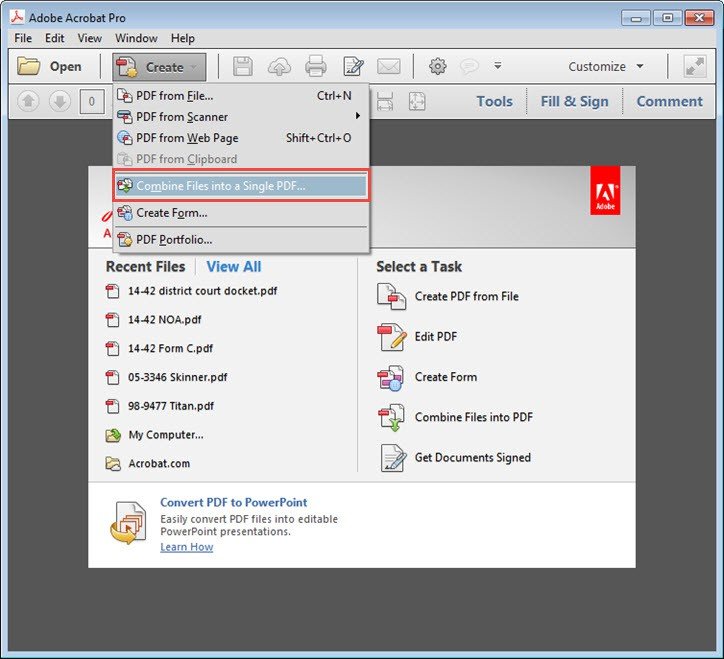
- With Adobe Acrobat open, click on the Create menu.
-
Select the menu item "Combine Files into a Single PDF ... "
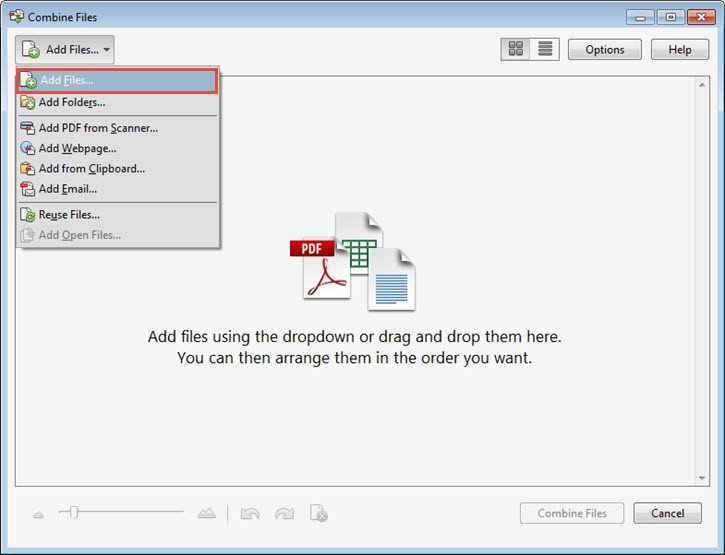
- A new window will open. Click on the "Add Files ... " menu.
-
Select the "Add Files ... " option from the drop-down menu.
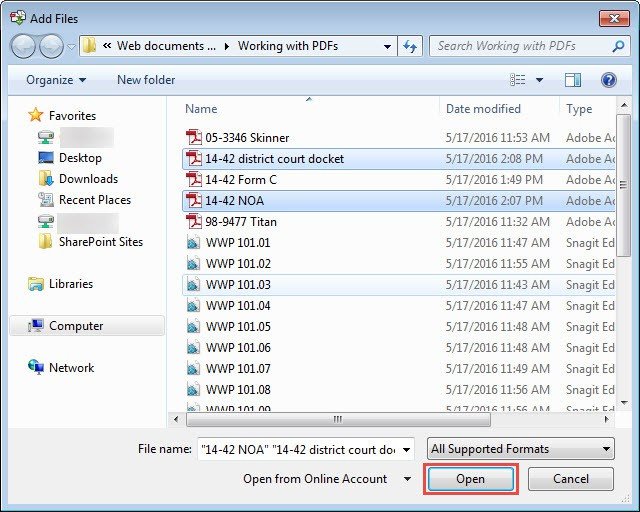
- Select each file to be combined by clicking on the file name in the Add Files dialog box. Holding down the Shift or Ctrl key when clicking on a file name permits a user to add more than one file at a time.
-
When finished selecting file names, click Open at the bottom of the dialog box.
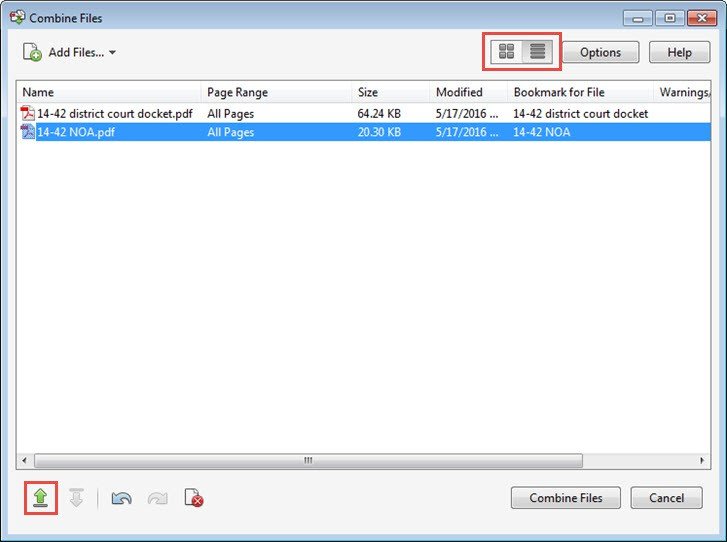
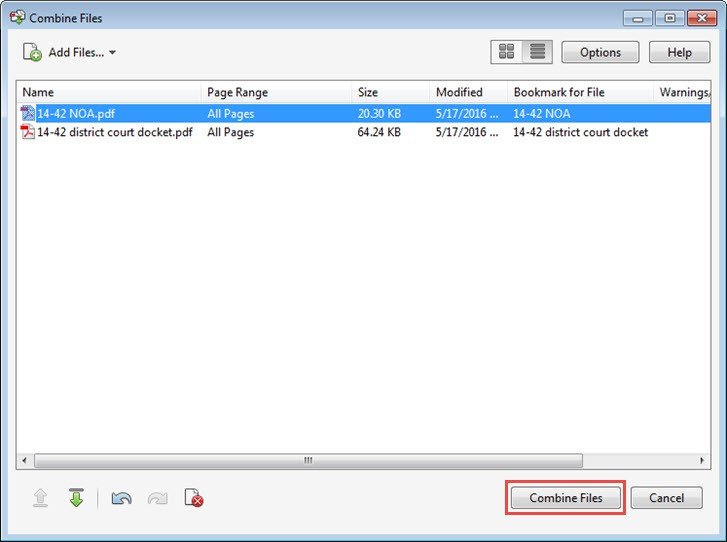
- The selected files now appear in the Combine Files window in Adobe Acrobat. The files may be viewed as thumbnails or in a list (as shown below) by selecting the view type at the top right of the window.
-
To change the order in which the files appear in the merged combined document, highlight the name of the file to appear first, then click the up arrow at the bottom left of the window to move that file to the top of the list.
-
Once you are satisfied with the order of your documents, click on Combine Files button.
-
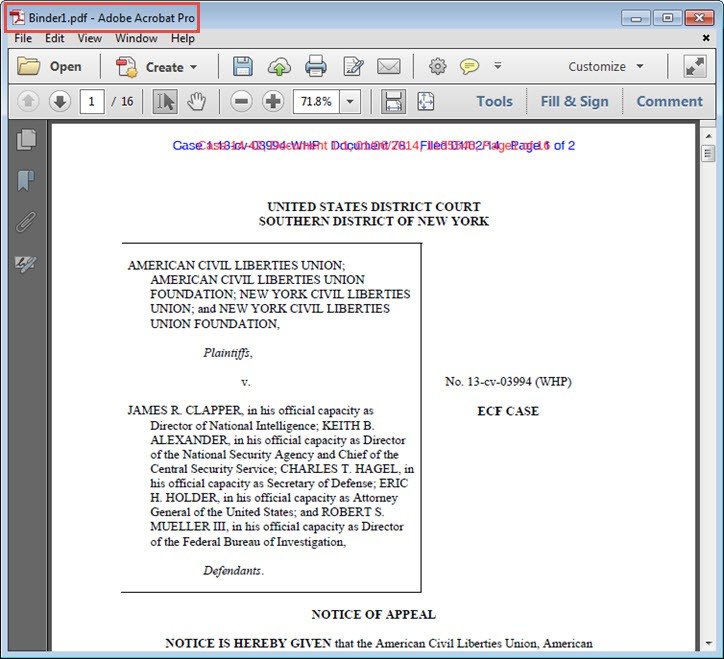
The files you selected in the previous step will be combined into one document.
Merging Two or More Documents in Multiple Formats
If a user wishes to combine documents that currently exist in various formats into a single PDF, the easiest process is to print out all the documents and scan them into a single document from a scanner that creates PDFs.